


What is WLAN? Setup, Security & Optimization
WLAN lets devices communicate wirelessly over radio waves – mobile, flexible, and secure against unauthorized access when set up correctly.
What is WLAN?
WLAN stands for Wireless Local Area Network and refers to a technology that enables devices to communicate wirelessly with a network via radio waves. This offers the advantage of mobility and flexibility compared to conventional wired networks. A router is required to access the WLAN, which transmits data packets between the Internet and the connected devices. Setting up a secure WLAN is crucial to prevent unauthorized access and misuse. Modern Wi-Fi standards such as Wi-Fi 6 offer improved speed and efficiency. Wi-Fi has established itself globally as the preferred method for wireless internet access in both homes and businesses.
Advantages of WLAN
WLAN offers numerous advantages over traditional wired networks.
Mobility without cables
Productivity in the office
Simple, inexpensive setup
Advanced security
Works with every device
Setting up a WLAN network
- 1Choose a routerThe router connects your devices wirelessly to the internet and should be chosen carefully to ensure optimal performance.
- 2Connect the routerConnect the router to the Internet source and follow the manufacturer's instructions to configure the network.
- 3Name the network & set a passwordUse the supplied software to name the Wi-Fi network, create a secure password and make the desired settings.
- 4Enable encryptionChoose a strong password and enable the latest encryption methods, such as WPA3, when configuring your router for maximum security.
- 5Check the configurationMake sure that your Wi-Fi network is configured correctly to ensure a stable and secure connection.
Optimizing the WLAN connection
A few targeted adjustments get the most out of your existing WLAN connection.
Router placement
Position your router in a central location. Walls and ceilings can weaken the signal, and interference from other electronic devices should be avoided.
Firmware & password
Update the firmware for better performance and security. Use strong passwords with a secure encryption standard such as WPA2, and avoid WPS.
Extend the range
Repeaters or mesh systems can be used to expand the network and improve signal strength.
Channel settings
Check the channel settings of your router to prevent interference with other wireless LANs in the vicinity.
Security settings for WLAN
| Password | A combination of letters, numbers and special characters |
|---|---|
| Encryption | Enable WPA2 or WPA3 encryption |
| SSID | Change the default network name to make it less conspicuous |
| WPS | Disable it, as it can be a potential security vulnerability |
| Firmware | Always keep it up to date so security gaps are closed |
| Guest network | Set up a separate network for visitors to isolate your main network |
Troubleshooting tips for the WLAN network
- 1Check the router statusFirst check whether the router is working correctly.
- 2Restart the routerRestarting the router can often solve minor connectivity problems.
- 3Rule out interferenceMake sure that your Wi-Fi signal is not affected by other devices or thick walls – the position of the router plays an important role in signal strength.
- 4Update the firmwareUpdate your router's firmware regularly to benefit from security updates and performance improvements.
- 5Check network securityUse strong passwords and modern encryption standards such as WPA2 or WPA3 to protect your WLAN from unauthorized access.
- 6Check the settingsIf devices still cannot connect, check the network settings and make sure that the wireless settings are configured correctly.
- 7Contact supportIn case of persistent problems, it may be advisable to contact the support of your Internet provider or the router manufacturer.
Related topics
- WLAN routers & access points – the right hardware for every budget.
- WLAN simulation – planning for optimal networks.
Questions about setup, security or optimization?
Our team of experts is happy to help you with your WLAN.
Frequently asked questions about WLAN
WLAN in action
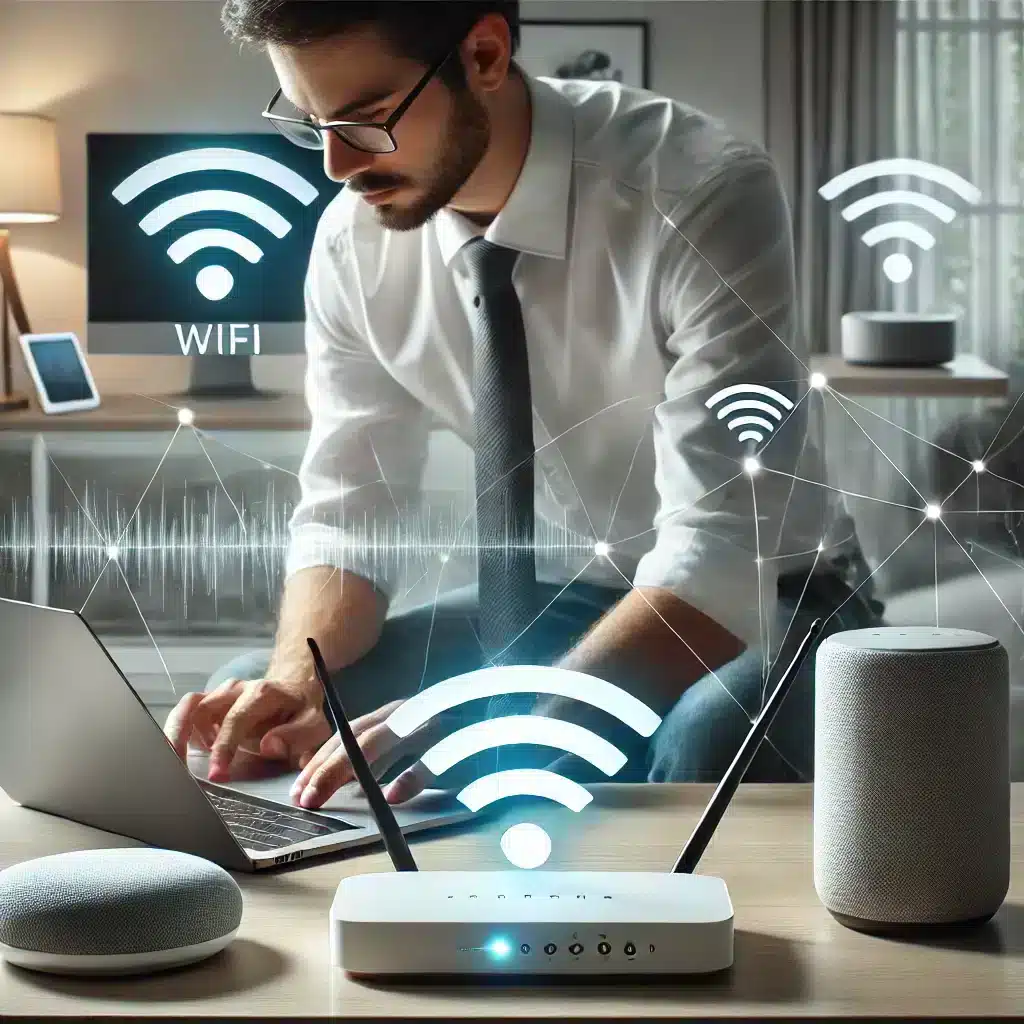
- A user sets up their WLAN and then works productively on their laptop.
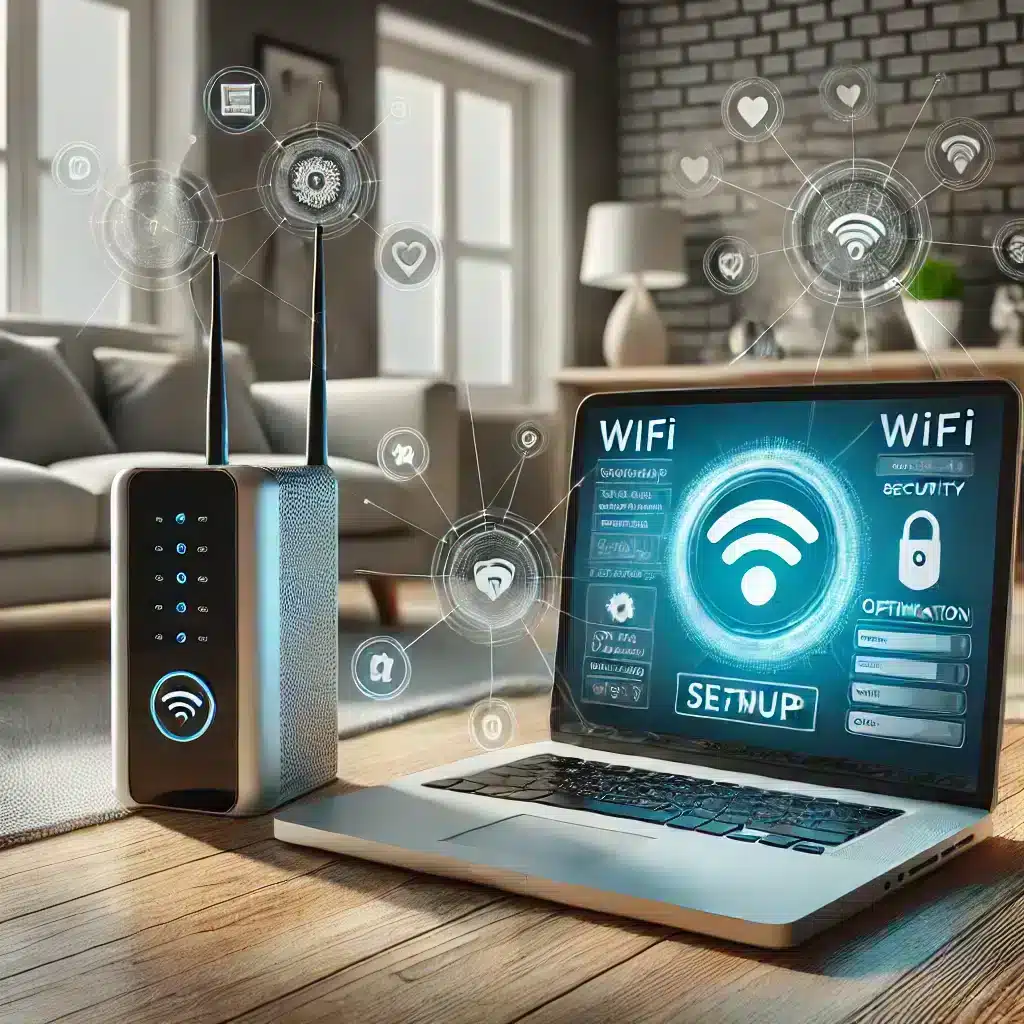
- Router and laptop in a modern living room, ready for WiFi configuration.
Set up and secure your WLAN the right way
From choosing the right hardware to secure configuration – we're happy to support you.
We look forward to hearing from you!
Send us a message — we will get back to you shortly with personal advice.