


Upgrading to Peplink Firmware 8.6.0: The Complete Guide
Introduction
Peplink Firmware 8.6.0 is ready — and with it changes that IT administrators need to know. This Peplink firmware upgrade guide walks you through the entire process: staged upgrade requirements, FIPS and certificate changes, and post-upgrade verification.
As a Peplink Gold Partner, Ascend supports you with certified expertise.
Ascend is a Peplink Gold Partner. Consulting, support and devices can be found at ascend.de/loesungen/marken/peplink and in the shop.ascend.de.
1. Before the upgrade – staged upgrade requirements
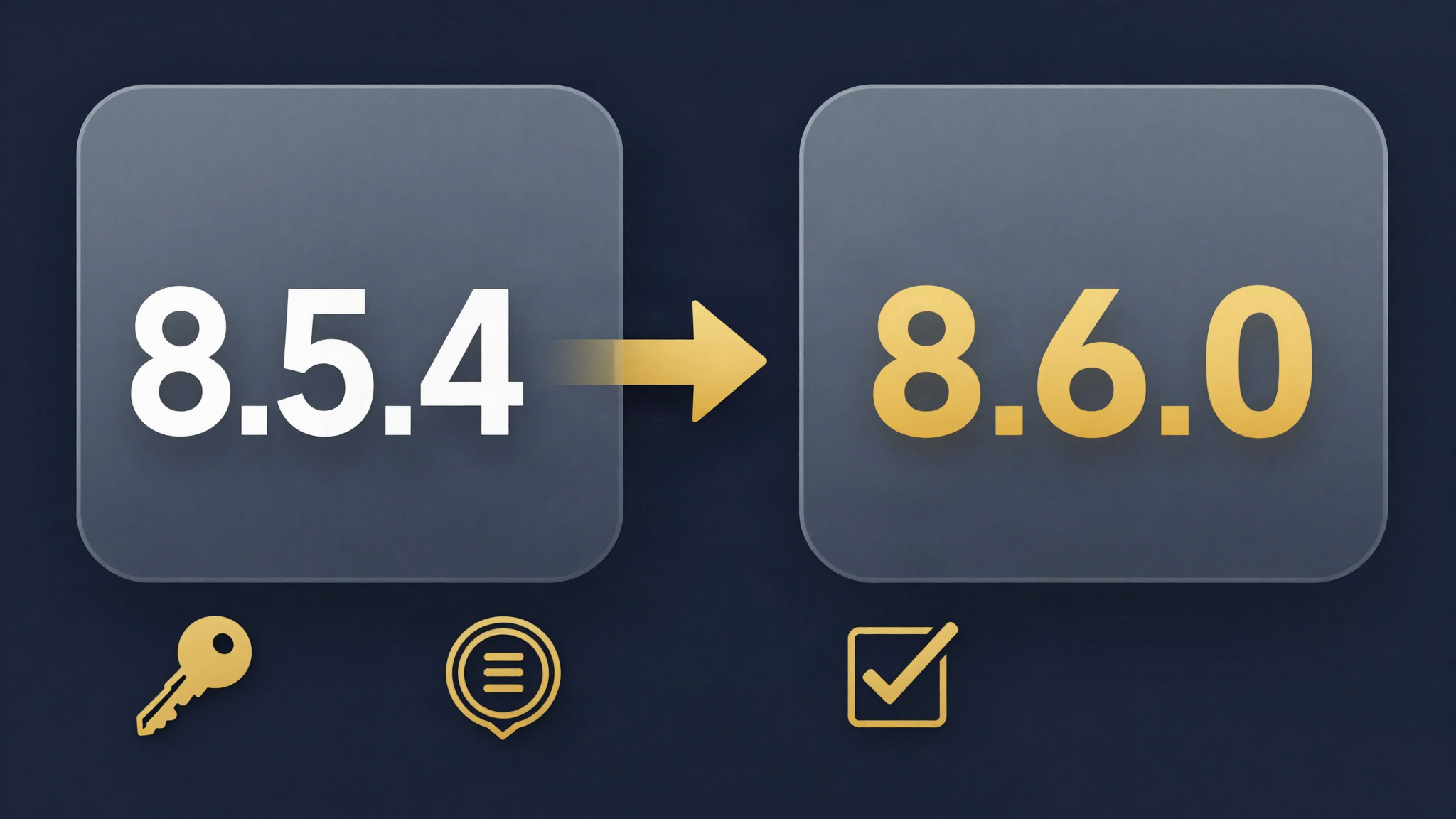
Not all devices can be updated directly to 8.6.0. For a specific group, a staged upgrade is required: first to 8.5.4, then to 8.6.0.
Affected models for the staged upgrade
The following devices must run the path → 8.5.4 → 8.6.0:
- Product family: MAX (BR series) · Affected models: BR1 Pro (CAT-20), BR1 Pro 5G, BR2 Pro
- Product family: Dome · Affected models: all Dome models
- Product family: Transit · Affected models: all Transit model lines
- Product family: B One · Affected models: all B One models
Why the staged upgrade?
Peplink explicitly requires the intermediate step for these model groups; the release notes give no detailed technical rationale. Concretely, this means for practice: these devices cannot be updated directly to 8.6.0 — the upgrade runs via 8.5.4.
Practical tip
What has proven effective in practice is, after upgrading to 8.5.4, waiting until all devices have completed the restart and reported to InControl — only then start the upgrade to 8.6.0. (Own work recommendation, not an official Peplink requirement.)
2. FIPS and IPsec preshared key requirements
Firmware 8.6.0 tightens the requirements for IPsec preshared keys (PSK) when FIPS mode is enabled. This change follows current best practices for cryptographic operations.
The rule
When FIPS is enabled, all IPsec preshared keys must be at least 14 characters long.
What you need to check before the upgrade
- Check the FIPS status: in the FIPS settings of the web admin.
- Inventory the IPsec tunnels: in the IPsec settings.
- Check PSK length: every preshared key at least 14 characters.
- Update before the upgrade: change too-short PSKs before the upgrade.
What happens in case of non-compliance?
If a too-short PSK is present and FIPS is enabled, the affected IPsec tunnel may no longer be able to be established after the upgrade. The upgrade itself proceeds, but VPN connectivity is then interrupted until the PSK is corrected.
Recommendation
Use the upgrade as an occasion to increase your PSKs to 20–32 characters. Generate new keys with a password manager or a cryptographically secure random generator.
3. Certificate modernization – what to check
Firmware 8.6.0 modernizes certificate management. Old and insecure formats are no longer accepted – especially on devices that have been in service for years and whose certificates were never updated.
What is no longer accepted
- Certificate type: DSA (Digital Signature Algorithm) · Status in 8.6.0:** no longer accepted
- Certificate type: short RSA keys · Status in 8.6.0: no longer accepted
- Certificate type: legacy PKCS#12 (older formats) · Status in 8.6.0:** no longer accepted
Auto-fallback to a secure default certificate
When a device after the upgrade detects that the configured certificate does not meet the requirements, an auto-fallback kicks in: the device automatically switches to a secure default certificate. That means:
- The function is preserved – web admin and VPN remain reachable.
- Browser warnings – depending on the certificate type of the replacement certificate, browsers may show a warning.
- VPN partners may need to accept the new certificate if certificate pinning is in use.
Pre-upgrade checklist
- Inventory all imported certificates (Certificate Manager).
- Check RSA key length – own work recommendation: at least 2048 bit, ideally 4096 bit.
- Replace DSA-based certificates with RSA or ECDSA certificates.
- Re-export PKCS#12 files (modern OpenSSL version).
- For externally trusted certificates: use Let's Encrypt or a commercial CA.
- Test SpeedFusion tunnels with certificate authentication.
FusionSIM and RemoteSIM
If you use FusionSIM or RemoteSIM, the SIM Injector must be updated to Firmware 1.2.6. Otherwise communication between the Peplink device and the SIM Injector may be impaired.
PrimeCare
For PrimeCare customers: InControl must be enabled. Make sure the device is registered in InControl and actively communicating before starting the upgrade.
4. Retired models – is your device still supported
With Firmware 8.6.0, numerous older hardware revisions are retired. These devices receive no update to 8.6.0; Peplink supplies them at most with maintenance updates of the 8.5.x line. They continue to work, but receive neither the 8.6.0 features nor their security improvements.
Balance – retired models
- Model: Balance 30 LTE · HW revisions: HW1
- Model: Balance 30 Pro · HW revisions: HW1
- Model: Balance 210 · HW revisions: HW4, HW5
- Model: Balance 310 · HW revisions: HW4
- Model: Balance One · HW revisions: HW1, HW2, HW3
- Model: Balance One Core · HW revisions: HW1
MAX – retired models
- Model: MAX 700 · HW revisions: HW3, HW4
- Model: MAX BR1 ENT · HW revisions: HW1, HW2
- Model: MAX HD1 Dome · HW revisions: HW1
- Model: MAX HD2 · HW revisions: HW5, HW6
- Model: MAX HD2 Dome · HW revisions: HW1
- Model: MAX HD2 IP67 · HW revisions: HW2, HW3, HW4, HW5
- Model: MAX HD2 Mini · HW revisions: HW1, HW2, HW3, HW4
- Model: MAX HD2 with MediaFast · HW revisions: HW1, HW2, HW3, HW4
- Model: MAX HD4 · HW revisions: HW1, HW2, HW3, HW4, HW5
- Model: MAX HD4 IP67 · HW revisions: HW1
- Model: MAX HD4 with MediaFast · HW revisions: HW1, HW2, HW3, HW4
- Model: MAX Transit · HW revisions: HW1, HW2, HW3
- Model: MAX Transit 5G · HW revisions: HW2, HW3
- Model: MAX Transit Core · HW revisions: HW1
- Model: MAX Transit Duo · HW revisions: HW1, HW2, HW3
- Model: MAX Transit Duo Pro E · HW revisions: HW1
- Model: MAX Transit Pro E · HW revisions: HW1
MediaFast and SpeedFusion Engine – retired models
- Model: MediaFast 200 · HW revisions: HW1, HW3
- Model: SpeedFusion Engine (SFE) CAM · HW revisions: HW1
What does “retired” mean in practice?
A retired model receives no more firmware updates:
- No security patches for newly discovered vulnerabilities.
- No new features from future firmware versions.
- Limited support – Peplink Support can only help to a limited extent.
Recommended action
Plan a hardware replacement in the medium term. Current models such as BR1 Pro 5G, Transit Duo or the B One line offer significant improvements.
5. Post-upgrade verification checklist
After the successful upgrade to 8.6.0, systematic verification is necessary to ensure all services and connections work.
System verification
- Web admin reachable: login successful, all menus load correctly.
- Confirm firmware version: 8.6.0 is shown in the status display.
- Device restart: the device was cleanly restarted at least once.
- InControl connection: the device reports to InControl and shows status “Online”.
Network verification
- WAN connections: all configured WAN links are active and deliver throughput.
- LAN connections: internal networks reachable, DHCP assigns addresses.
- SpeedFusion tunnels: all tunnels are up, latency and bandwidth in the normal range.
- IPsec tunnels: all tunnels are up — especially important with FIPS enabled.
- DNS resolution: internal and external DNS resolution works.
Security verification
- Check certificates: in the Certificate Manager — no warnings about DSA or short RSA keys.
- FIPS status: if FIPS is enabled, status green, no error messages.
- VPN PSK length: all IPsec preshared keys ≥ 14 characters (with FIPS enabled).
- Firewall rules: all rules loaded, no missing entries.
Verify additional components
- SIM Injector: Firmware 1.2.6 confirmed (with FusionSIM/RemoteSIM use).
- PrimeCare: InControl active and communicating.
- Pepwave/AP management: if present, all access points reachable and functional.
After 24–48 hours
- Check logs: review the system log for newly appeared error messages.
- Performance monitoring: CPU and memory usage in the normal range.
- WAN failover: test a WAN outage — failover works as configured.
- Bandwidth monitoring: no unexpected changes in data traffic.
Conclusion
The upgrade to Peplink Firmware 8.6.0 brings security improvements and modern cryptography standards. Success stands and falls with preparation. Anyone who observes staged upgrade paths, checks FIPS and PSK requirements, renews outdated certificates and knows the hardware status regarding retired models can perform the upgrade without interruption.
Post-upgrade verification is equally important — only the systematic checklist gives certainty that all connections work.
Act now
As a Peplink Gold Partner, Ascend supports you at every step:
- Consulting: which models are affected? → ascend.de/loesungen/marken/peplink
- Hardware: current Peplink devices → shop.ascend.de
- Support: technical accompaniment of the firmware upgrade.
Contact our Peplink team.
Frequently asked questions
Request upgrade support
Which models are affected, which PSKs are too short, which certificates are affected? We review your fleet and accompany the upgrade in a maintenance window.
Matching Peplink products
Matching hardware directly from the Ascend Shop — availability and prices are shown on the product detail page.



Further reading
This article was researched and written with AI support and reviewed before publication by Ascend's Peplink-certified engineers.
Ready for your next project?
Talk to our team about your requirements.
Related posts

WireGuard on Peplink: Modern VPN Remote Access Arrives with Firmware 8.6.0
Peplink Firmware 8.6.0 brings WireGuard VPN for Remote User Access on all models. Comparison with OpenVPN and L2TP, deployment recommendations and SFC Direct Access.
Peplink 8.6.0 Cellular & 5G: Multi-APN, 5G SA and Four eSIM Profiles
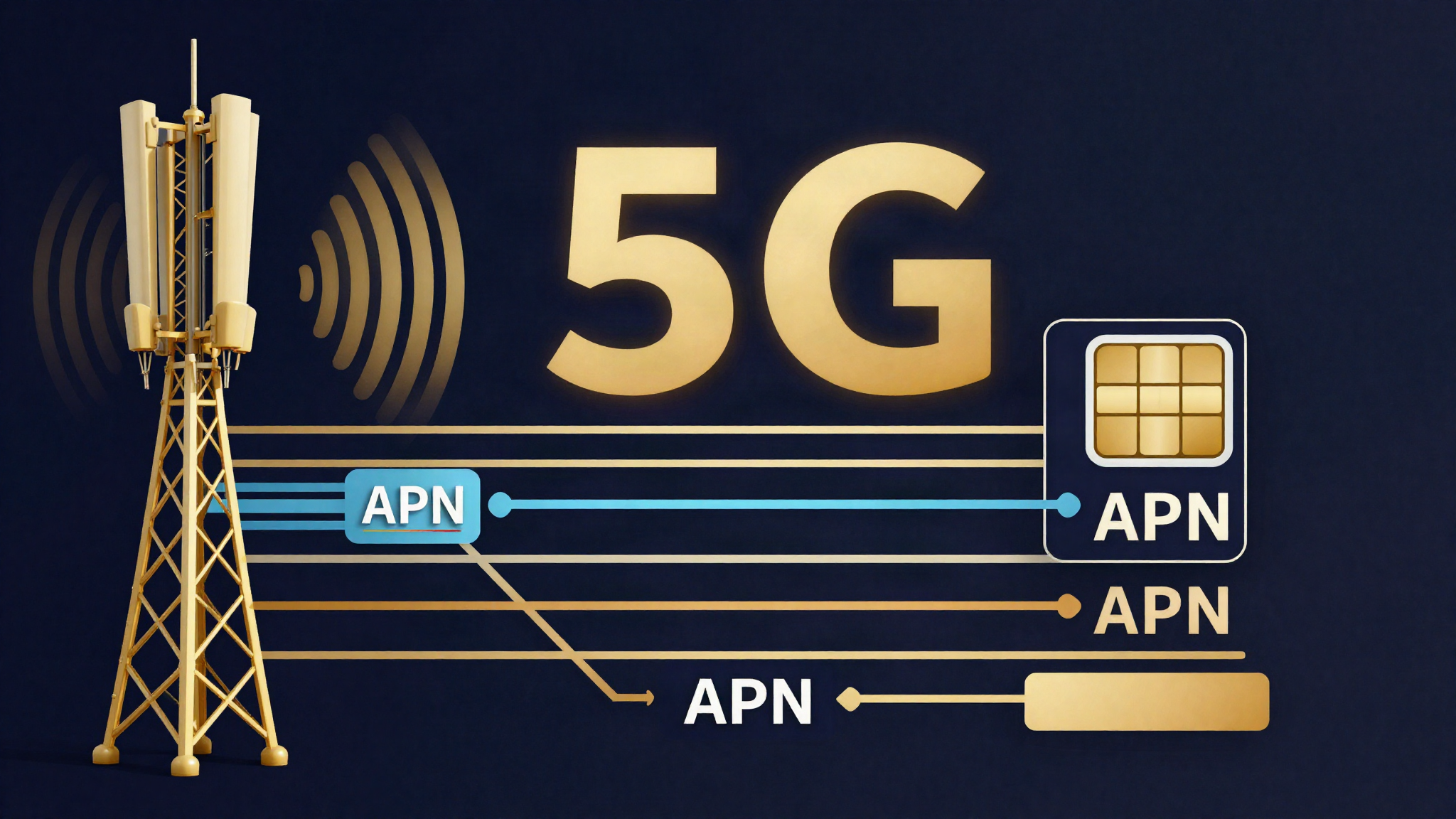
Peplink 8.6.0 brings Multi-APN on 5GN, 5G Standalone on 5GD, IPv6 on five module families and up to four eSIM profiles per modem. Overview for cellular and IoT deployments.

Orbit WAN: Peplink's New Satellite Integration with Starlink and OneWeb
Peplink Orbit WAN in Firmware 8.6.0 turns Starlink and OneWeb terminals into natively managed WANs — with dish telemetry, tuned health checks and SpeedFusion Boost bonding.